Productivity
Video Call Setup Checklist for Remote Work and Online Classes
Improve video calls with better audio, lighting, camera placement, bandwidth settings, and privacy habits.
A better video call setup does not require a studio. Most improvements come from audio, lighting, camera placement, and a few reliable habits. The goal is to be clear, present, and easy to understand without spending the meeting fighting settings.


Fix audio first
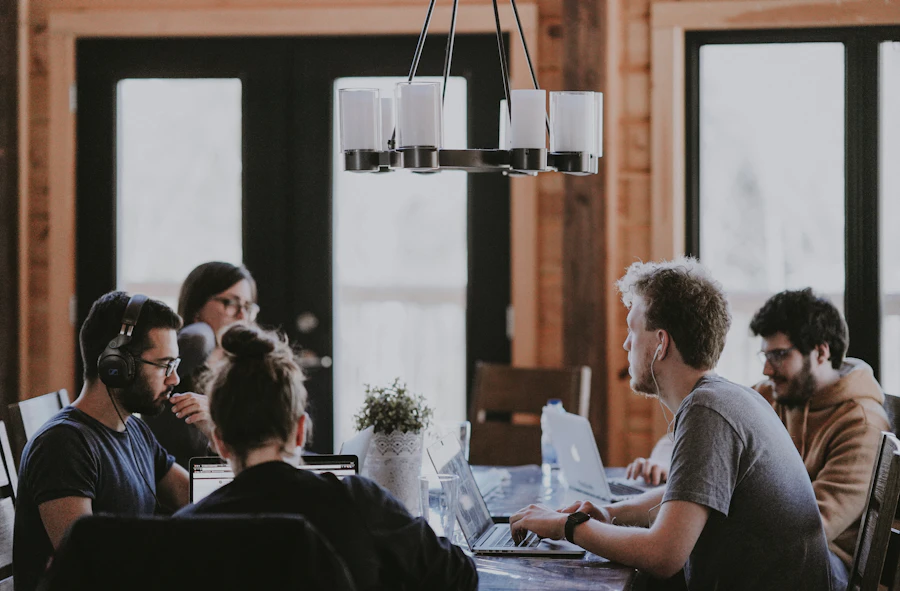
People can tolerate average video, but poor audio quickly ruins a call. Use headphones or a simple headset if the room echoes. Keep the microphone away from keyboard noise, fans, and open windows.
Before important meetings, record a short test in the call app. Listen for echo, low volume, or background noise.
Place the camera at eye level
A laptop camera angled upward is rarely flattering and can make eye contact feel strange. Raise the laptop on a stand or a stack of books, then use an external keyboard if needed.
Keep the camera stable. Avoid holding the phone for long calls unless you have a stand.
Use soft front lighting
Face a window or a soft lamp. Avoid sitting with a bright window behind you because the camera may expose for the window and darken your face.
If the room is dim, use a small desk lamp bounced off a wall instead of pointing a harsh light directly at your eyes.
Protect private details
Review what the camera can see. Remove documents, whiteboards, family photos, mail, and anything that should not be visible. Virtual backgrounds can help, but a clean real background is usually more stable.
When sharing your screen, close private tabs, messaging apps, and file explorer windows. Share only the specific window when possible.
Reduce bandwidth problems
If calls freeze, lower video quality, turn off incoming HD video if the app allows it, and pause large downloads. Move closer to the router or use wired internet for important calls.
For online classes or long meetings, plug in the device and keep a backup connection ready if your phone plan allows hotspot use.
Create a pre-call routine
Five minutes before the call:
- Plug in power.
- Check microphone and camera.
- Close private tabs.
- Open the files you need.
- Silence phone notifications.
- Join early if the meeting is important.
Keep tools simple
Use the call app’s built-in settings before installing extra camera filters or audio tools. Extra tools can add delay, crash, or request broad permissions.
A professional call setup is mostly repeatable basics. Clear sound, stable framing, good light, and fewer distractions make online work feel calmer for everyone.
Sponsored
Sponsored links may open partner offers selected by region, device, and availability.
Explore Sponsored Tech Offers