Mobile
Kids Device Safety Settings Guide for Shared Phones Tablets and Laptops
Set up safer family devices with app limits, content settings, purchase controls, privacy checks, and backup habits.
Family devices need settings that match real life. A phone may be used for school, games, video calls, messages, and shared streaming accounts. Safety settings work best when they are clear, consistent, and easy for adults to maintain.

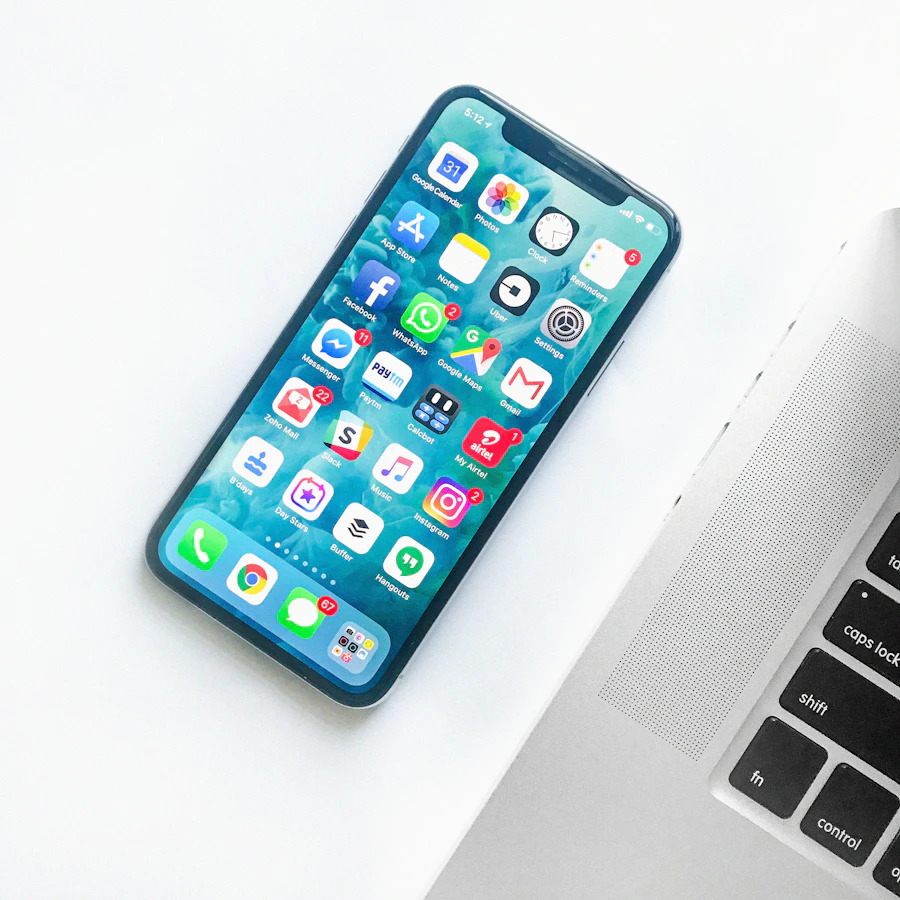

Use separate profiles
Separate profiles or child accounts keep apps, history, recommendations, and purchases from blending together. They also make it easier to apply age-appropriate settings without locking down every adult device.
Avoid sharing the main adult account for routine use.
Set purchase controls
Require approval or a password for purchases. This includes app stores, in-app purchases, game currencies, subscriptions, and one-click checkout. Review saved payment methods on shared tablets and laptops.
Review app access
Install apps from trusted stores and remove apps that are no longer used. Check camera, microphone, location, contacts, and photo access. Games and learning apps do not always need broad permissions.
Make backups boring
Family devices often hold school files, drawings, photos, and messages. Confirm that important files are backed up before resetting, trading in, or handing down a device.
Talk about settings
Technical controls help, but they work better when people know why they exist. Explain the reason for limits, what to do when something looks suspicious, and who to ask before installing a new app.
Device safety is not one setting. It is a small system of accounts, permissions, purchases, backups, and conversations.
Sponsored
Sponsored links may open partner offers selected by region, device, and availability.
Explore Sponsored Tech Offers