Privacy
Home Router Security Settings Most People Should Check
A practical router checklist covering Wi-Fi passwords, guest networks, firmware updates, remote access, and device names.
The home router is easy to forget because it sits quietly in a corner. But it controls the network used by phones, laptops, tablets, smart TVs, cameras, speakers, and work devices. A few basic settings can reduce risk and make troubleshooting easier.
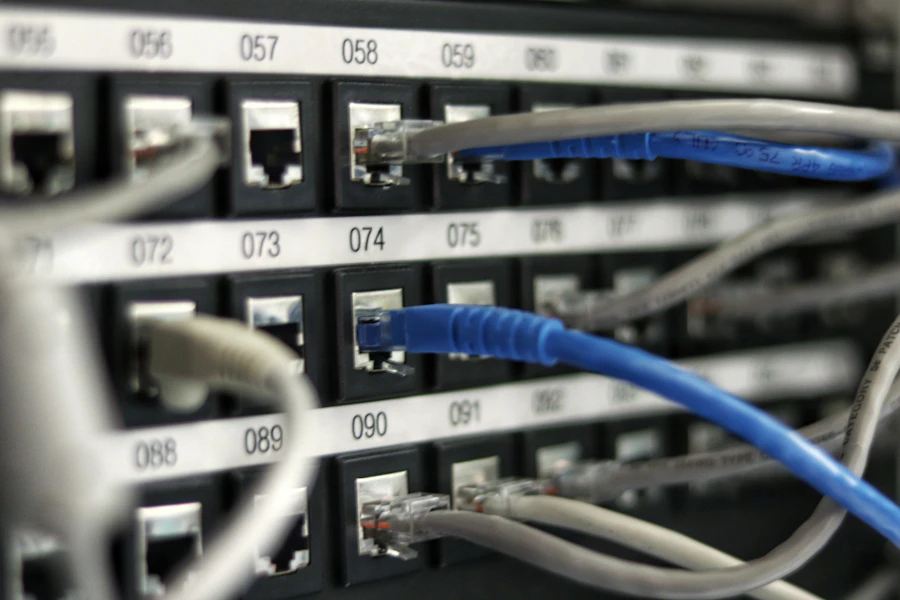
Change default admin login
The router admin password is not the same as the Wi-Fi password. It protects the settings page where someone can change network names, DNS, security modes, and remote access.
Use a unique admin password and store it in a password manager. If the router still uses a default login printed on a sticker, change it.
Use modern Wi-Fi security
Use WPA2 or WPA3 when available. Avoid old modes like WEP. If the router offers a mixed mode for compatibility, use it only when an older device truly needs it.
The Wi-Fi password should be long and not reused anywhere else. A short phrase with several words is easier to share and type than a random mess nobody can read.
Create a guest network
A guest network is useful for visitors and smart home devices. It keeps casual devices away from your personal laptops and shared folders.
Give the guest network a separate password. Turn it off when it is not needed if your router makes that easy.
Update firmware
Router updates fix security issues and stability problems. Check whether your router updates automatically. If it does not, set a calendar reminder to review firmware every few months.
If the router has not received updates for years, it may be time to replace it, especially if it manages work devices or security cameras.
Disable remote administration
Remote administration lets the router settings page be accessed from outside your home network. Most households do not need it. Turn it off unless you know exactly why it is enabled.
Also review port forwarding rules. Remove anything you do not recognize.
Rename devices clearly
Many routers show connected devices with confusing names. Rename them in the router app if possible:
- Alex laptop.
- Living room TV.
- Kitchen speaker.
- Work phone.
- Guest tablet.
Clear names help you notice unknown devices and troubleshoot slow connections.
Review DNS settings
Some people use private DNS or family-safe DNS filtering. That can be helpful, but the setting should be intentional. If DNS entries look unfamiliar, reset them to your provider, router default, or a trusted DNS service you chose yourself.
Keep a simple network note
Keep one private note with router model, admin URL, support link, update date, Wi-Fi names, and where recovery details are stored. Do not put the actual password in an unprotected note.
Router security is not glamorous, but it protects everything else that depends on the network. Fifteen careful minutes can prevent many frustrating problems later.
Sponsored
Sponsored links may open partner offers selected by region, device, and availability.
Explore Sponsored Tech Offers