Mobile
App Permission Review for Phones and Tablets
Review camera, microphone, location, contacts, photos, and notification access without breaking the apps you rely on.
Apps often ask for permissions during setup, when you are trying to get something working quickly. Months later, those permissions may still be active even if the app no longer needs them. A review makes the phone quieter and more private.
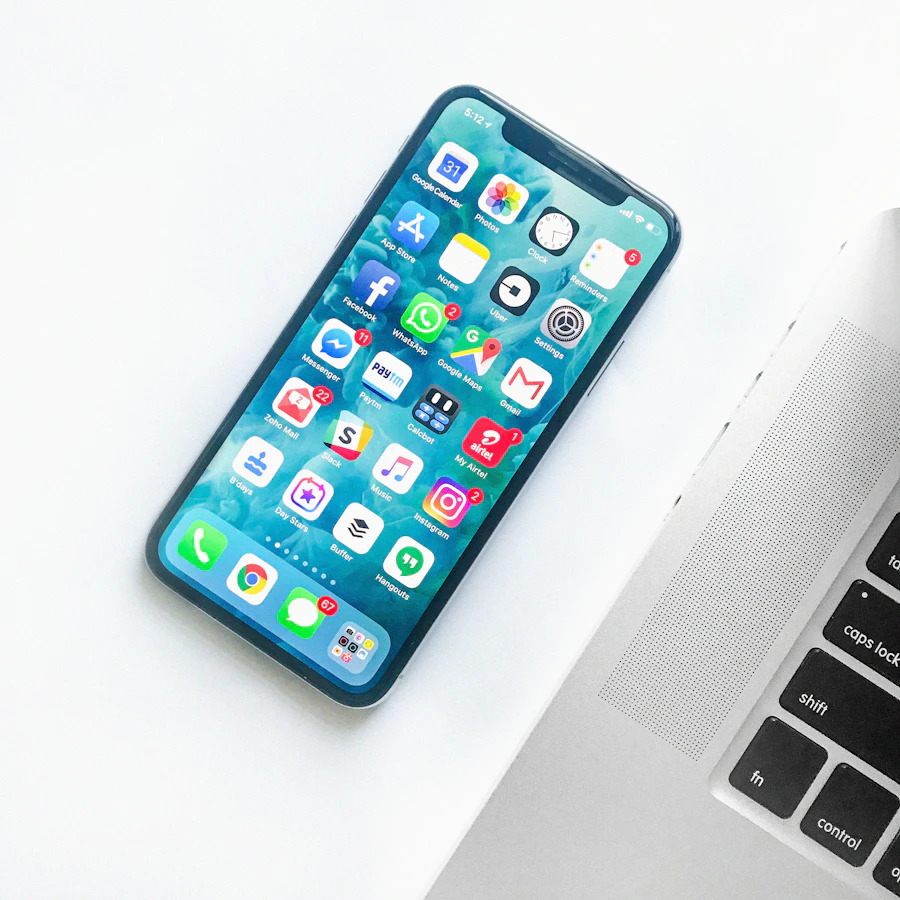


Start with location
Location is one of the most sensitive permissions. Weather, maps, ride sharing, and delivery apps may need it. A calculator, wallpaper app, or casual game usually does not.
Use “while using” access where possible. Reserve always-on location for apps that truly need background tracking.
Check camera and microphone
Video call apps need camera and microphone access. Many other apps only need it occasionally. If you use a feature once, consider turning the permission off afterward.
Watch for apps that request microphone access without a clear reason.
Limit photo library access
Some systems let you share selected photos instead of the entire library. Use that option when uploading a receipt, profile image, or one-time document.
Full photo access should be reserved for gallery, editing, backup, and messaging apps you trust.
Review notifications
Notifications are not only annoying. They can reveal private information on the lock screen and train you to open apps more often. Turn off promotional alerts and keep only the messages that deserve attention.
Remove unused apps
Permissions do not matter if the app is gone. Delete apps you no longer use, especially old utilities, games, scanners, and shopping apps installed for one task.
A permission review takes only a few minutes, but it makes the device feel more intentional.
Sponsored
Sponsored links may open partner offers selected by region, device, and availability.
Explore Sponsored Tech Offers